Migrate GitHub Actions Profiling to Service Accounts
This guide walks you through migrating your GitHub Actions profiling workflows from project tokens to the new IAM system using service accounts with minimal role bindings.
What's Changing
Previously, GitHub Actions profiling workflows authenticated using project-scoped JWT tokens. The new IAM system replaces these with:
- Service accounts — named identities with granular, role-based permissions
- Service account tokens — API tokens (format:
psc_v1_<64-hex-characters>) tied to a service account - Role bindings — assignments that grant only the permissions needed
The project to send data to is now specified separately via a projectID gRPC metadata header, rather than being embedded in the token.
Steps
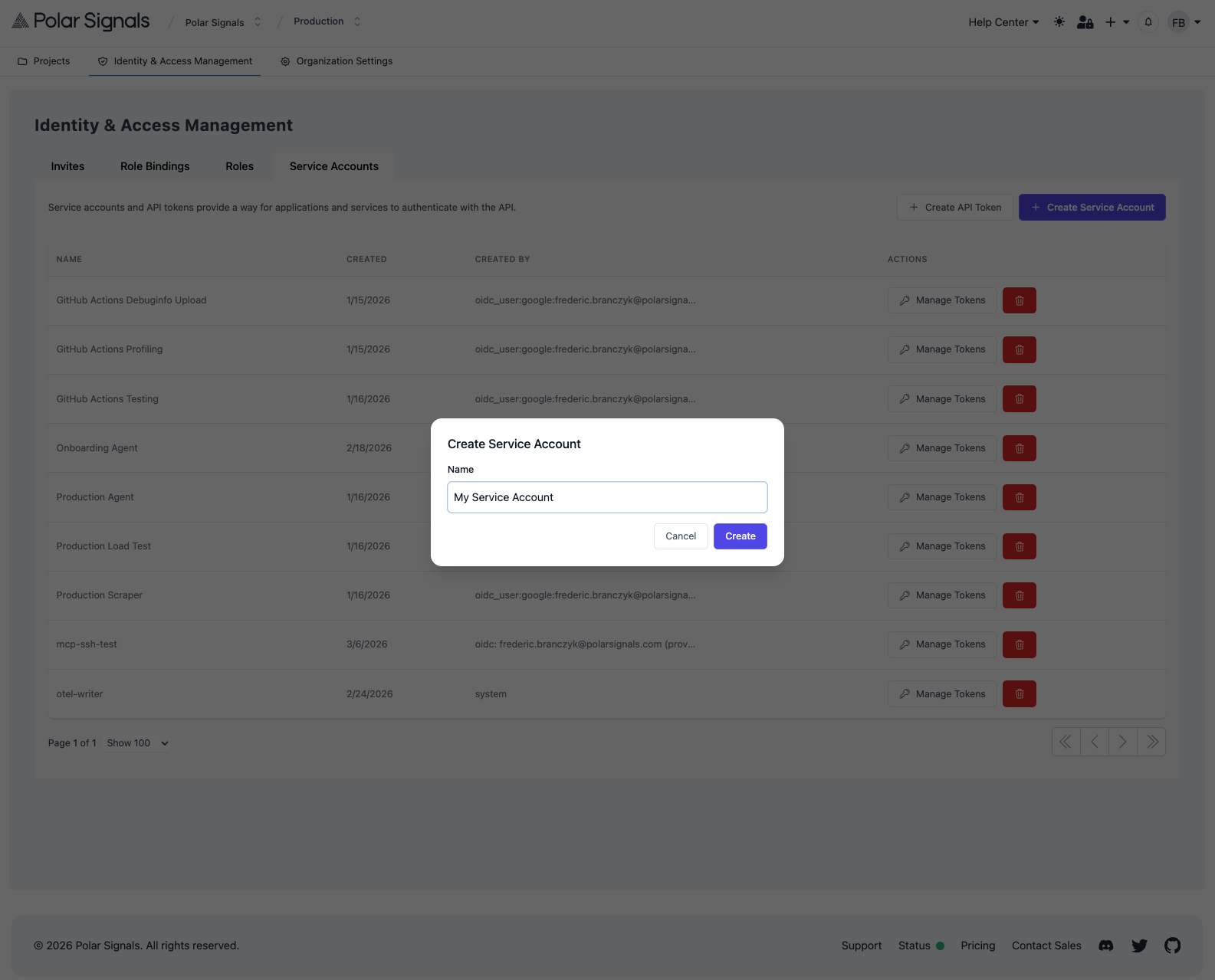
1. Create a Service Account
- Go to your organization settings
- Navigate to Identity & Access Management > Service Accounts
- Click Create Service Account
- Enter a descriptive name (e.g.,
github-actions-profiling)
2. Create a Role Binding
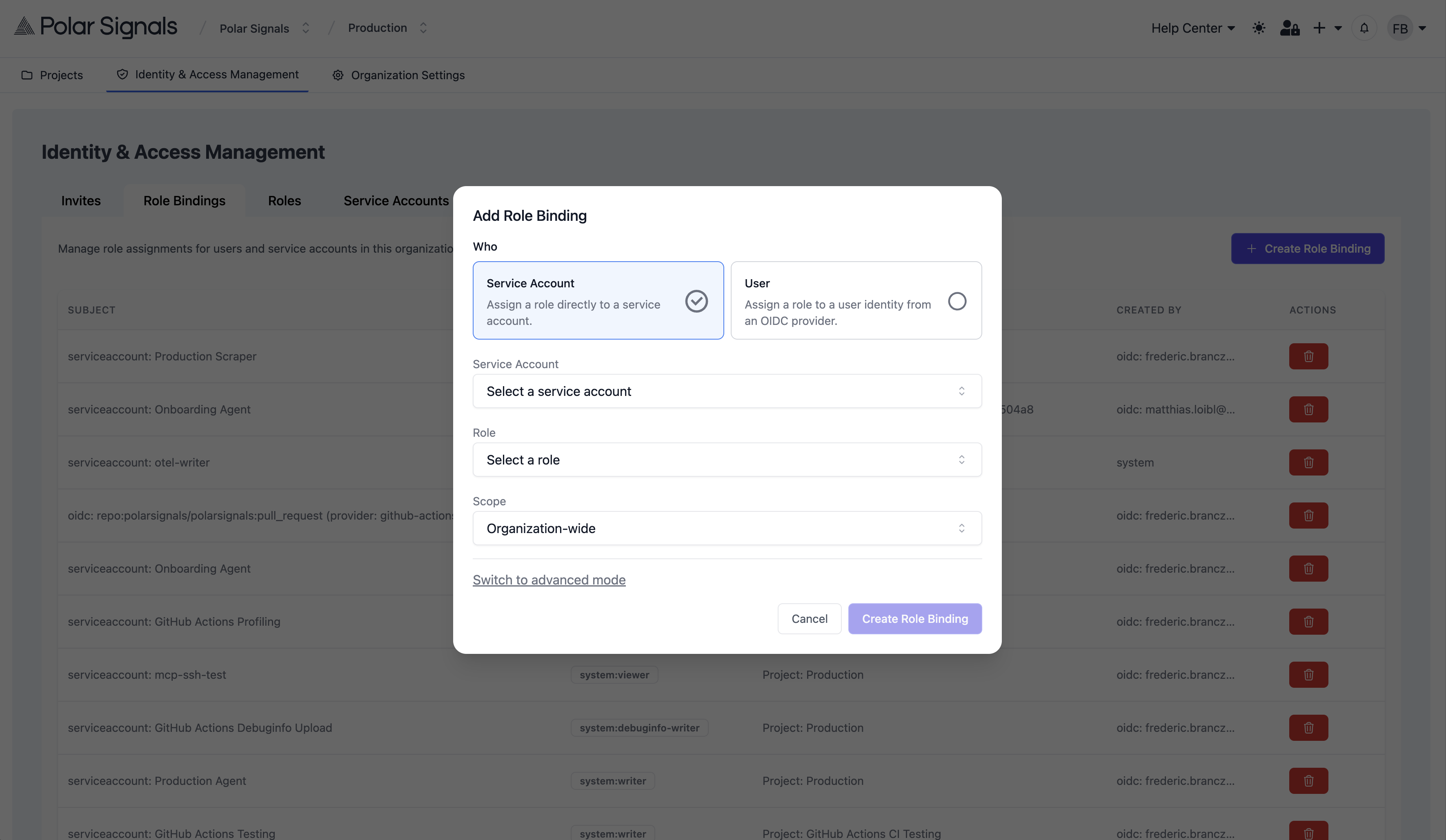
- Go to Identity & Access Management > Role Bindings
- Click Create Role Binding
- Select your new service account as the subject
- Select the Writer role
- Optionally, scope the binding to a specific project
The Writer role grants data.write and debuginfo.write. GitHub Actions profiling workflows typically need both since debug information is often only available in CI and needs to be uploaded alongside profiling data.
If you are certain your workflow only sends profiling data and never uploads debuginfos, you can use the Profile Writer role instead, which only grants data.write.
3. Generate a Token
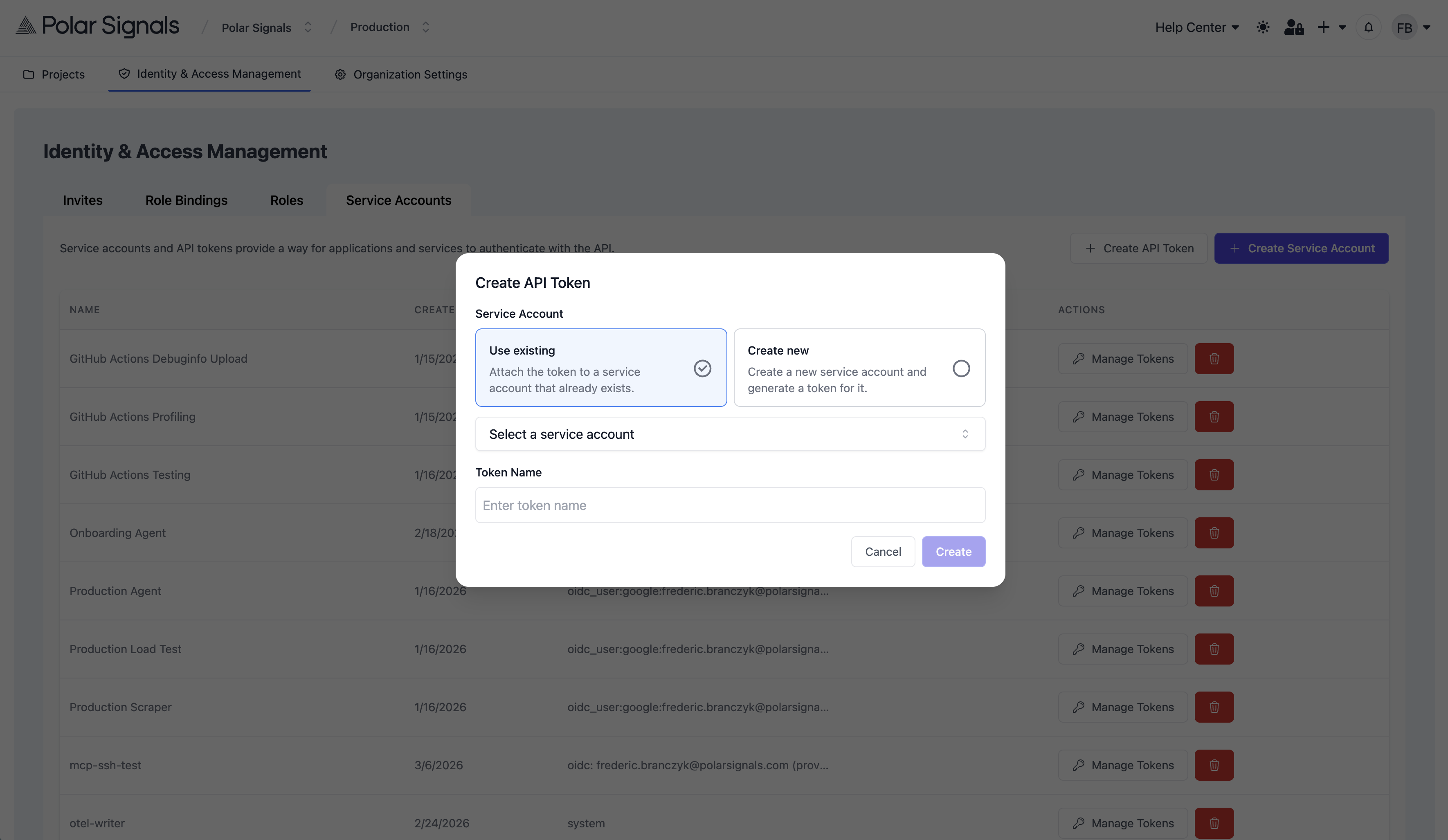
- Go to Identity & Access Management > Service Accounts and click on the "Create API Token" button.
- You can either use an existing service account or create a new one specifically for the agent. If you create a new service account, make sure to assign it the appropriate role bindings as described in Step 2.
- Enter a descriptive name for the token
- Click Create Token
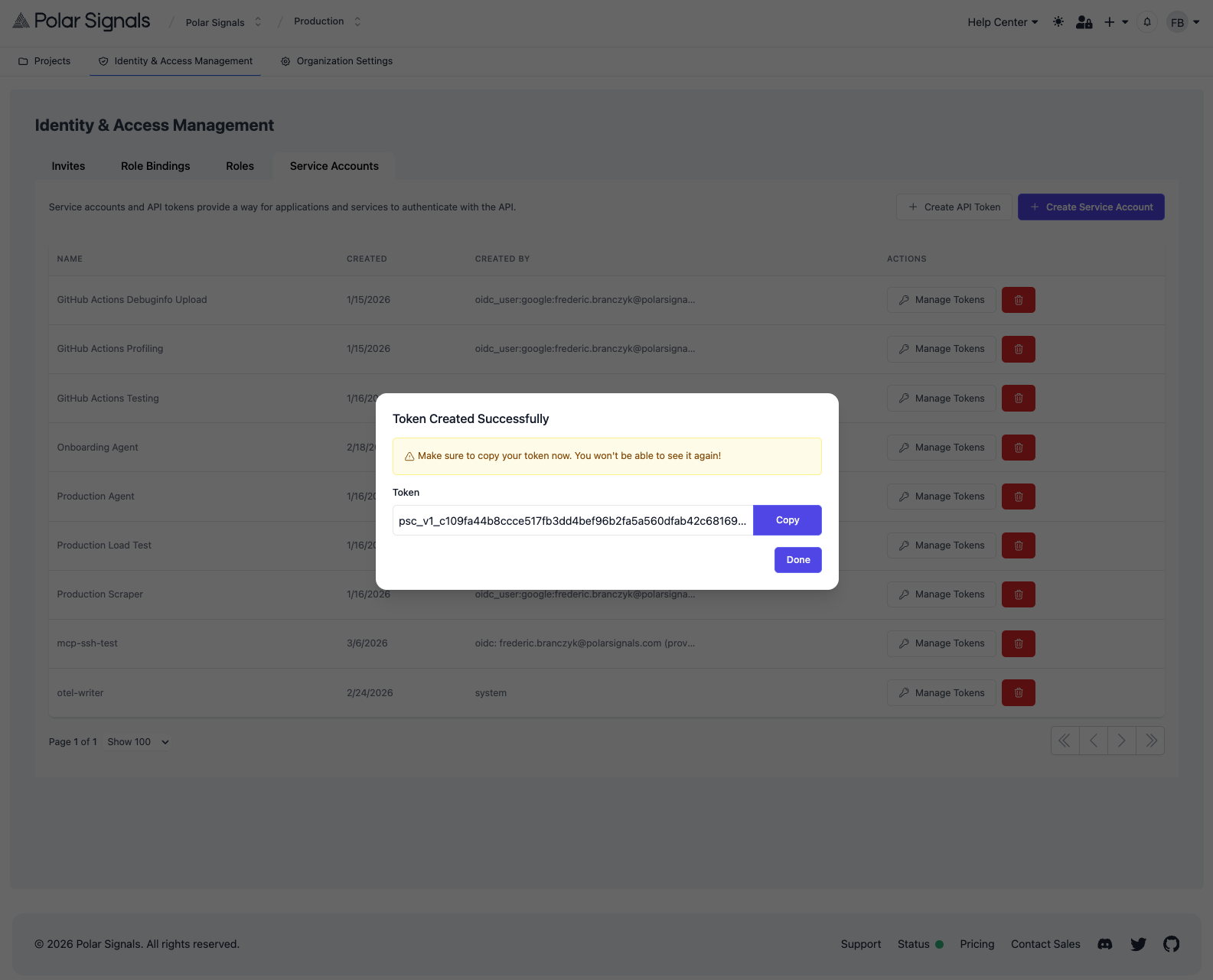
- Copy the token immediately — it is only shown once
4. Update GitHub Repository Secrets
- Go to your repository Settings > Secrets and variables > Actions
- Create or update the following secrets:
| Secret Name | Value |
|---|---|
POLARSIGNALS_TOKEN | Your new service account token (psc_v1_...) |
POLARSIGNALS_PROJECT_ID | Your project ID (UUID) |
Find your project ID in your project settings in the Polar Signals Cloud UI.
5. Update Your Workflow
Replace the old token with the new service account token and add the projectID header. The two key flags are:
- Token:
--remote-store-bearer-token(for the agent) or--bearer-token(forparca-push) - Project ID:
--remote-store-grpc-headers=projectID=$POLARSIGNALS_PROJECT_ID(for the agent) or--grpc-headers=projectID=$POLARSIGNALS_PROJECT_ID(forparca-push)
6. Verify and Revoke
Push a commit to trigger the workflow and verify profiling data appears in Polar Signals Cloud. Then revoke the old project token and remove the old secret from your repository settings.
See Also
- Generating Tokens — creating service accounts and tokens
- IAM — roles, permissions, and role bindings reference